DADERA
AICB · Desktop application

The interface where you curate the context.

The MCP server answers single questions. The desktop application is where a solution becomes a document – and where you decide what belongs in it.

Send an enquiryBack to the overviewGitHub Releases ↗
Layout

Sidebar, tabs, keyboard

The application is laid out like a development environment: areas on the left, tabs in the middle that you can leave open.

  • Four areas in the sidebar – quick access, workspace, configuration, MCP
  • Tabs stay open – several solutions at once, each with its own state
  • Light, dark or follow Windows – plus font size and zoom for the whole interface
  • Keyboard – generate the document, generate and send, switch the view; F1 lists them
  • Drop a .sln, .slnx or .slnf on the window – that is enough to open it
  • Sample solution to try it out – included and opened with one click on the start screen

The start screen names the three ways in: add a new solution, open a .sln, or resume a saved session. Recently opened solutions and sessions sit below.

Workspace

One solution, three profile axes

Before the analysis is any good it has to know how your project is built. Three settings cover that – each with bundled templates, none of them mandatory.

The three axes

  • Layer profile – which namespace is which architectural layer
  • Namespace exclusion – what counts as third-party noise and stays out
  • Test profile – how a test project is recognised

Bundled

  • Eight layer profiles – Clean Architecture, DDD, Hexagonal, MVVM, Onion, Vertical Slice, SAP Business One Add-On, no mapping
  • Exclusion lists – .NET base library, SAP Business One, none
  • Four test profiles – default, MSTest, NUnit, xUnit

The selection can be written to a file next to the .sln. It then lives in the repository, applies to everyone working on it – and the MCP server reads the same setting.

For SAP Business One

  • Layer profile “SAP Business One Add-On” – maps SAPbouiCOM to presentation, SAPbobsCOM, Service Layer and DI API to infrastructure, event and menu handlers to the application layer
  • Namespace exclusion “SAP Business One default” – keeps the COM interop namespaces SAPbouiCOM. and SAPbobsCOM. out of the context document
  • Review description “SAP DI API Patterns” – looks for missing ReleaseComObject calls, leaked form handles and missing error checks after DI API calls
Curating

What belongs in, and in how much detail

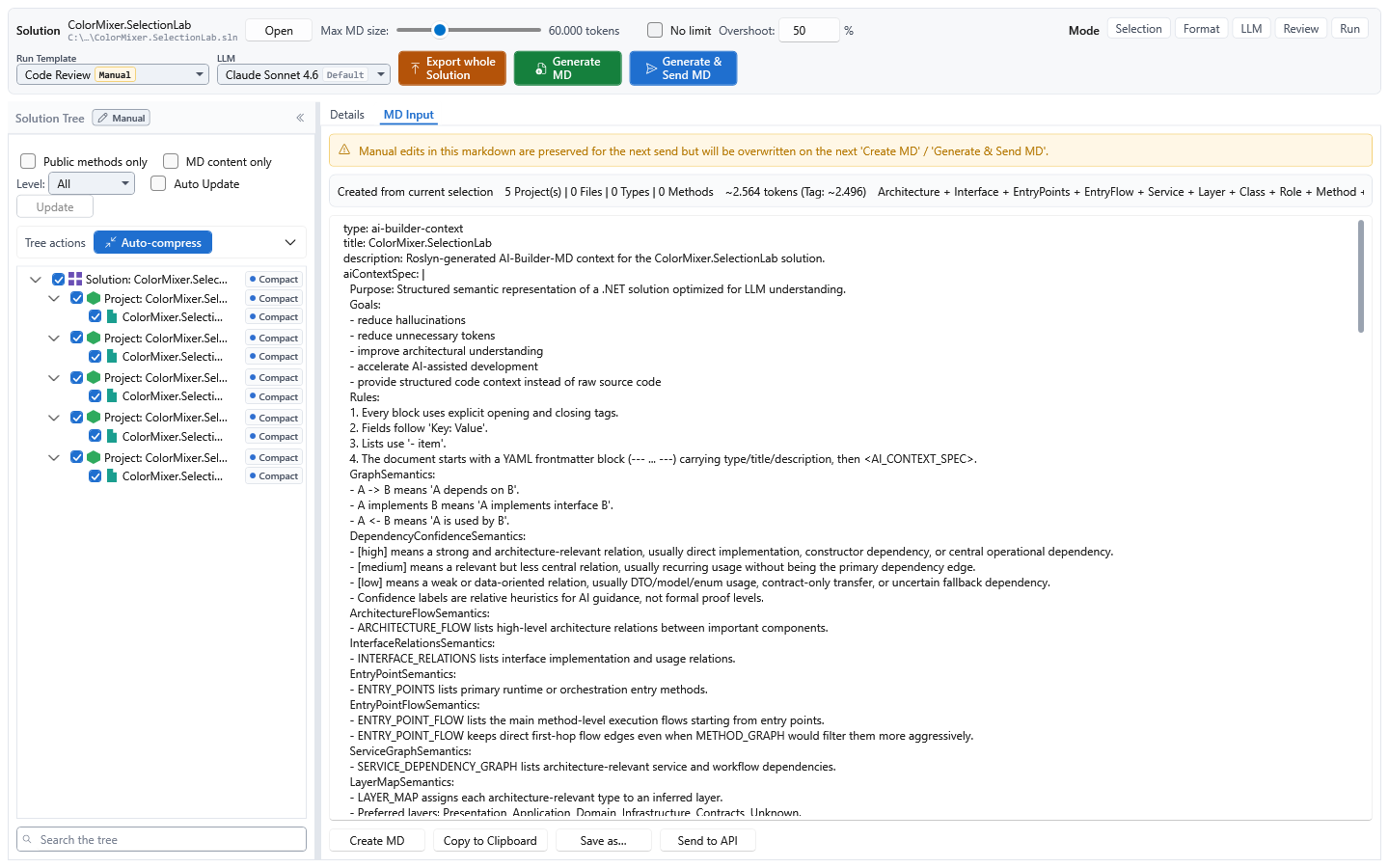
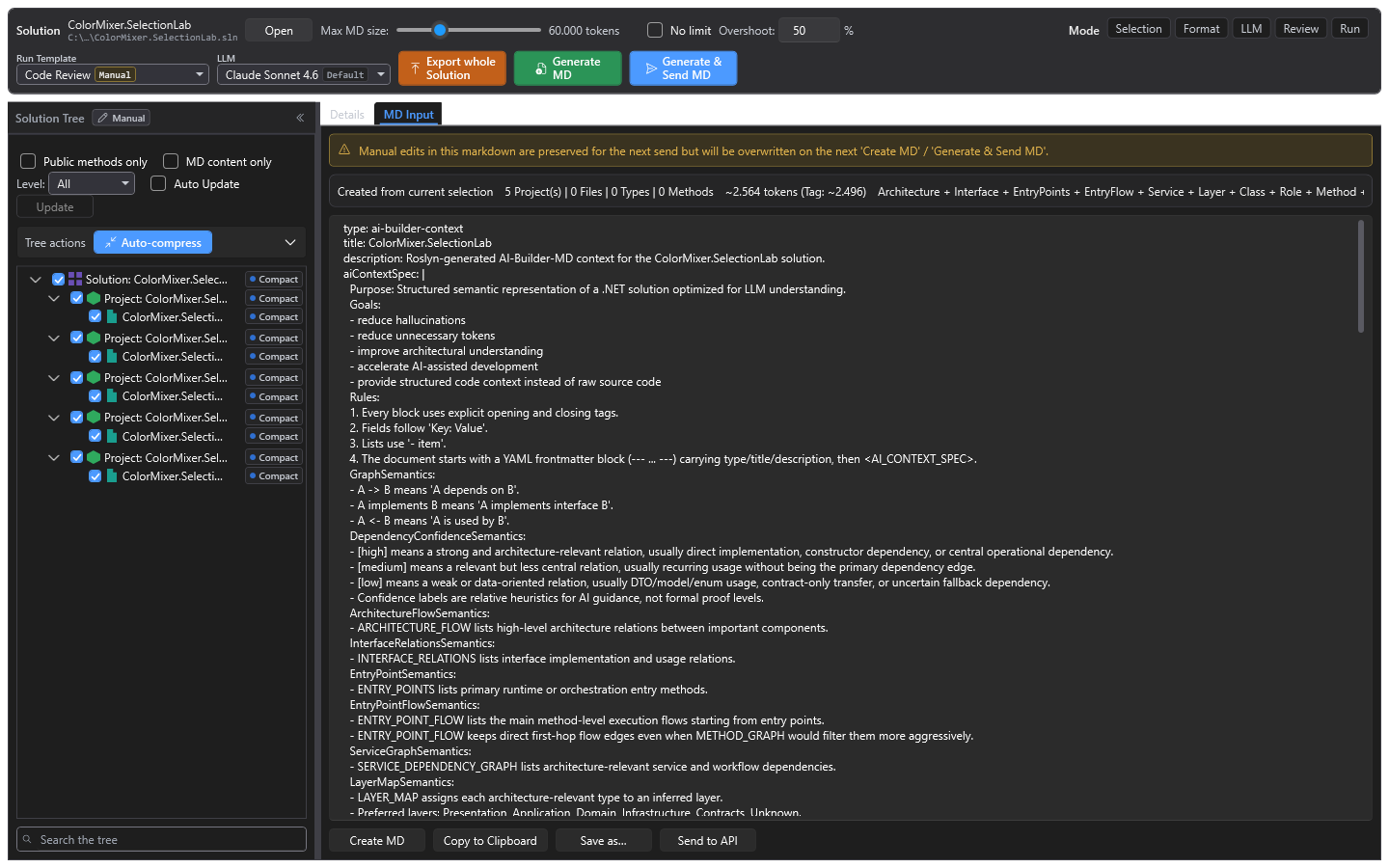
The solution tree is the central control: per node include, exclude, or inherit from the node above. Five controls are enough for a usable result; everything else has a sensible default.

  • Three-state selection – include, exclude, inherit; from the project down to a single file
  • Detail per node – from the bare signature to the full source
  • Auto-compress – one button condenses the selection in a single step
  • Token budget in the header – an upper bound on document size, plus the estimate for the result
  • Search and filters – public methods only, only what lands in the document, by level

The view grows with the task

The base view is deliberately narrow. Five switchable modes add what you currently need – selection, format, language model, review, run. Nothing is taken away by them; modes add up, and with none selected the minimal view stays.

Six bundled detail levels

How fully a type is described is a setting of its own: adaptive, compact, full, overview, source view, ultra-compact. Each can be adjusted, or joined by one of yours.

Context strategies

Which relationships come along – and how far

For each detail level, the selection engine sets how a node is rendered and how far the selection expands around it. That turns a few selected classes into a context containing exactly the neighbours it needs.

Include

  • Callers
  • Callees
  • Usages
  • Inheritance
  • Interface implementations
  • Created types
  • Used types
  • Injected dependencies

Exclude and limit

  • Filters – framework types, external assemblies, test classes, generated code
  • Expansion depth – set separately for methods and types
  • Upper bound – a maximum number of nodes for the whole context

Seven expansion strategies ship with it: flat, direct neighbours only, standard, deep, inheritance only, interfaces only, and along test coverage. Each can be adjusted for a run.

Templates – one strategy per task

A template bundles prompt, detail levels, expansion strategy, reduction and quality metrics. Ten ship with it:

  • Default (General) – balanced, the starting point without a specific task
  • Refactoring – architecture and layers, quality metrics with stricter thresholds
  • Debugging – deep call chains, full detail, line numbers, lenient reduction
  • Feature Focus – compact, direct dependencies only, small token footprint
  • Onboarding – the public API as a tour through unfamiliar code
  • Test Generation – source of the selected classes, focused for new tests
  • Documentation – XML documentation for the public API
  • Performance Audit – hot paths and call frequencies
  • Security Review – input validation and bypass paths in public APIs
  • AI Optimized – has a language model propose AI tags for the selected code
AI tags

Meaning right at the code

An AI tag is a short <ai> block in the XML documentation comment of a type or method. AICB reads it during analysis and passes it on in the context as a section of its own.

  • For types – role, layer, domain, context, responsibility, pattern, side effects, stability, determinism, data access, validation, error handling and more
  • For methods – role, layer, domain, context, priority, complexity, side effects, stability
  • Two notationsrole="Repository" or role: Repository, freely mixed
  • Precedence – an AI tag takes priority over the automatically inferred role or layer
  • Deliberately emptynone suppresses an inference that is wrong
  • Prioritypriority="high" protects a method from auto-compression
  • Visible – the detail view of a symbol shows its AI tags
Findings

What turns up along the way

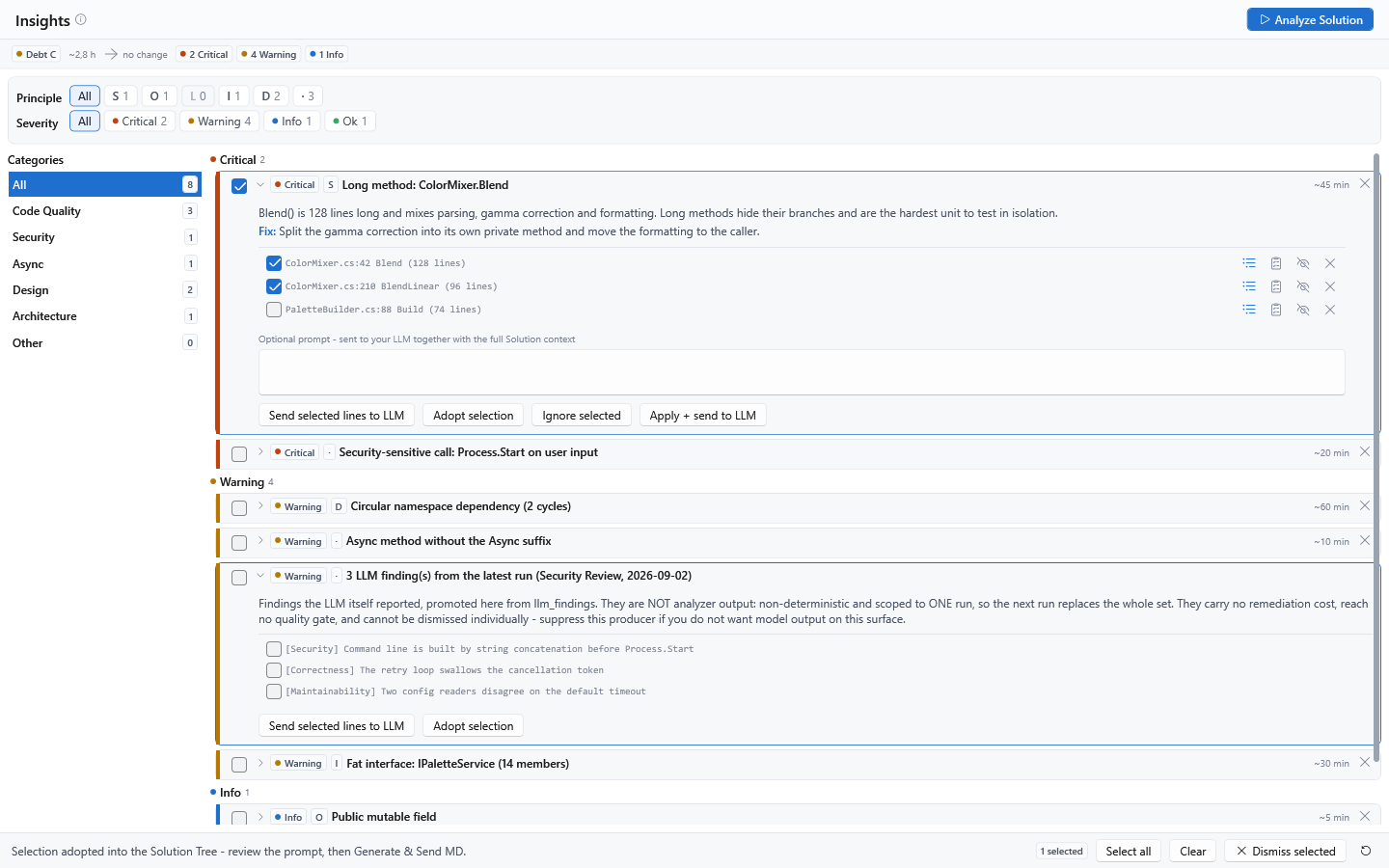
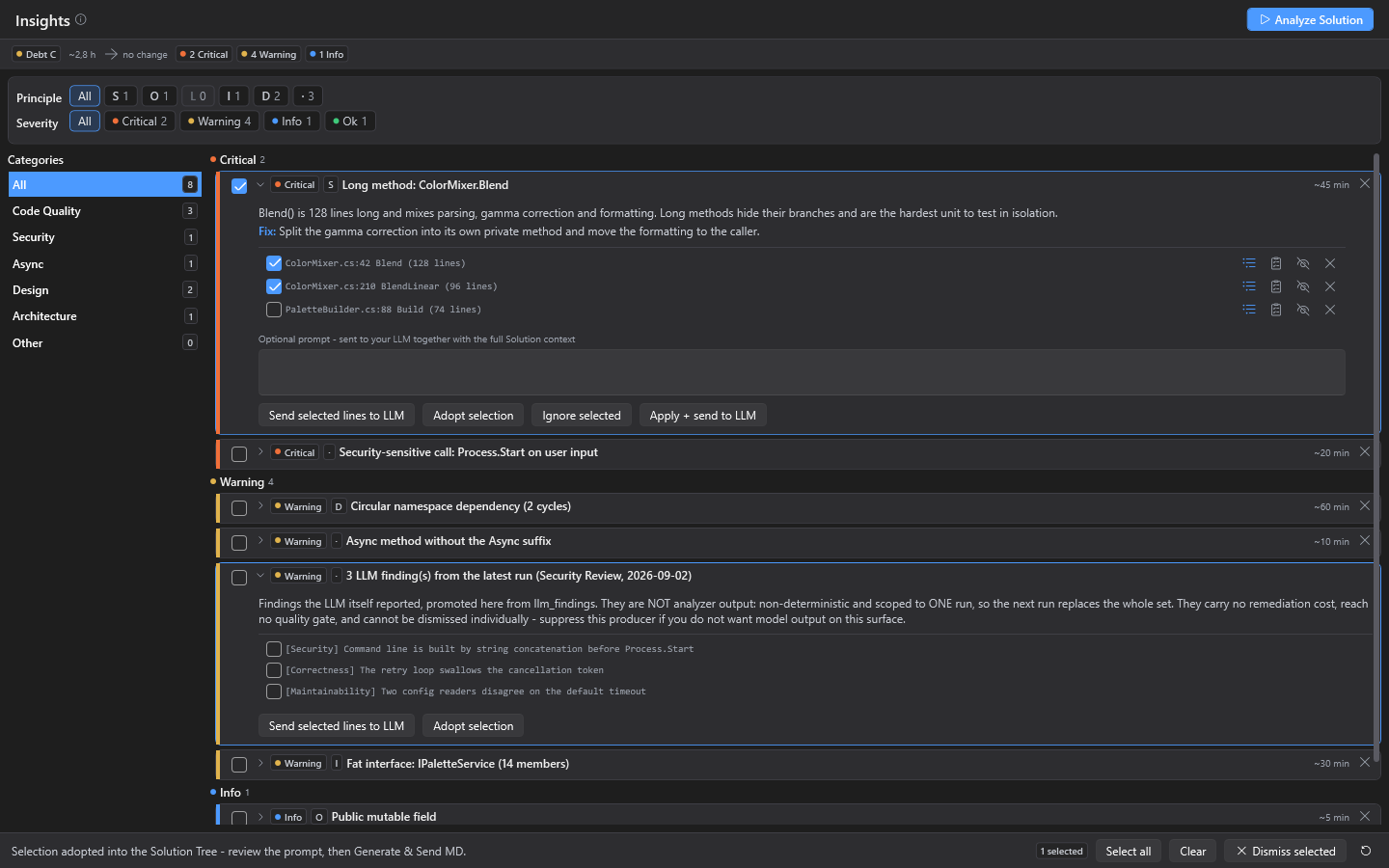
Checks run while a solution is loading. What they find sits in the Insights tab – by category, severity and estimated effort.

  • Four severities – critical, warning, info, ok
  • Categories – code quality, security, async, design, architecture
  • Estimated effort – per finding in minutes, summed across the solution
  • A suggestion with it – every finding names the places affected and a way to fix them
  • Use them straight away – adopt selected findings into the tree or send them to a language model

A finding is a hint, not a verdict. What you have seen and deliberately left alone can be dismissed without it returning on the next run.

Repeatability

Sessions and snapshots

A good selection rarely emerges on the first attempt. Both can be kept: the working state, and the analysed state of the code.

Sessions

  • Keep the working state – selection, settings, prompt, result
  • Resume in a new tab – days later if need be
  • Duplicate – try a variant without losing the original
  • Export as a file – to hand on or to archive

Snapshots

  • Automatic and manual – the state of the analysis, not of the selection
  • Compare two – what was added, what went, what changed
  • Down to the signature – the comparison names changed methods
The result

A document that explains itself

The Markdown it produces is not a source dump but a structured document with named sections. It opens by explaining its own layout, so a language model does not have to guess it.

  • 28 named sections – from architecture and entry points through to types and methods
  • Two notations – YAML by default, or the original tag format
  • Alias legend – long type names are shortened in the graph sections and explained once
  • Accompanying files – project files and the matching XAML come along into the document
  • Three ways out – to the clipboard, as a .md file, or straight to a language model

An excerpt from a generated document: the legend explains the aliases, and the graph sections use them.

pathLegend:
  notes:
  - "ColorMixerService => CMS"
  - "IColorMixerService => ICMS"
architectureFlow:
  flows:
  - "CMS -> CBC"
  - "CMS -> CRB"
interfaceRelations:
- CMS implements ICMS

AICB includes sensitive configuration files only once you switch that on explicitly.

When a language model should answer

Nine model profiles ship with it, from the large providers through to a locally running model. Endpoint, model name, token limit and temperature are set per profile, and a connectivity test comes with it. The API key goes into the Windows Credential Manager, not into a file.

Run types

Today the manual run is released: you put the context together and send it to the model with a template. Two further run types already exist and are visible in the picker, but still locked – Iterations, one step per class or method, for instance to generate and check AI tags, and Preselection, where the model first preselects the relevant context from a compact overview.

And the source alongside

A click in the tree opens the file in the built-in editor – with syntax highlighting and, if you want, with saving. Encoding and line endings are preserved. This is the one place where AICB writes your source; the MCP server and the command line cannot do it at all.

Stated plainly

What the desktop application does not do

Four points worth knowing before the first attempt.

  • Windows only – the interface is WPF; for Linux and macOS there are the command line and the MCP server
  • MSBuild is required – a .NET SDK or Visual Studio has to be installed
  • No replacement for the IDE – there is no completion, no debugging, no refactoring
  • Open trusted projects only – loading runs the solution's build logic, exactly as Visual Studio does

None of it goes outside: no usage reporting, no update check, no crash reports. The only connection the application opens is the one to the language model – and only when you press the button.

Does that sound like your working day?

Questions about the desktop app or using it in your team? Tell me briefly what you work with.

Send an enquiryTo the MCP server